
Quickstart
The real path from luriart.com/onboarding to your first live split test and your dashboard.
About 10 minutes
Everything starts at luriart.com/onboarding. Six numbered steps take you from a scan of your store to a live test, then to your dashboard.
What you'll need
- Your store URL, the public one your customers use.
- An email address. This is how your account gets created.
- On Shopify: admin access to install an app and edit theme settings.
- Anywhere else: a way to add one script tag to your site's
<head>.
Steps
Step 1: Start the scan
Enter your store URL and tick the permission box ("I give permission to scan my site and provide feedback on what can be changed. Nothing will be changed without my approval."). Click Start the scan.
Luria opens your homepage and your top product page in a real browser. Public pages only, your own site only. It never logs in, never touches your theme, and never pushes a change during the scan.
Step 2: Answer seven questions while the scan runs
The scan plays on the right. On the left, seven short questions shape your first tests: what you want more of (Sales, Leads, Calls, Signups), roughly what the page converts at today, where most traffic comes from, whether you would test a bundle offer, a stronger guarantee or a different main claim, and the one thing on the page you would never change.
If the scan cannot capture your site, the flow keeps going and uses a generic preview.
Step 3: Look at the before and after
You see your page today, a version with the selected tests applied, and the list of what Luria would split test. Every lift figure on this screen is an estimate from comparable changes, shown as a range. Your real numbers come later, from your own traffic.
Step 4: Unlock with your email
Tick the data consent box, enter your email, and click Unlock my preview. This is where your account and your site record are created, and where your sign-in link is issued.
The sign-in link opens luriart.com/app. It is valid for 30 minutes and works once. If the link hasn't arrived in ten minutes, email hello@luriart.com and we'll send it by hand.
Step 5: Choose your path
Two options, equal weight:
- Set it up yourself. Guided, step by step, about 10 minutes.
- Have Baneet set it up with you. Book a 30-minute onboarding call and do the install together.
Booking a call does not lock you out of the self-serve path; "Or start the setup now" stays on the screen.
Step 6: Go live (Shopify, four steps)
- Install the Luria app. Click Install Luria on Shopify. Shopify opens in a new tab and asks which store. Approve the install, come back, and confirm "I've installed the app".
- Approve the Data Processing Terms. Open Luria inside your Shopify admin. The "One-time permission" card has one button: Agree & start syncing. The engine stays off until you approve.
- Switch the theme app embed on. Online Store → Themes → Customize → App embeds → switch Luria on → Save. Faster: paste
your-store.myshopify.comand click Open the theme editor, which opens with Luria already selected so your only action is Save. Luria never edits theme code. - Confirm your first variant is serving. Traffic is then split between your page and the variant.
Onboarding polls for the terms and the embed on its own and ticks those steps off when it sees them. When the embed reports in, you land on "Your first test is live."
Not on Shopify? Luria gives you the script tag with your site ID already filled in, during onboarding or by email from hello@luriart.com. Paste it into <head>. Full guide: Install the script.
Step 7: Open your dashboard
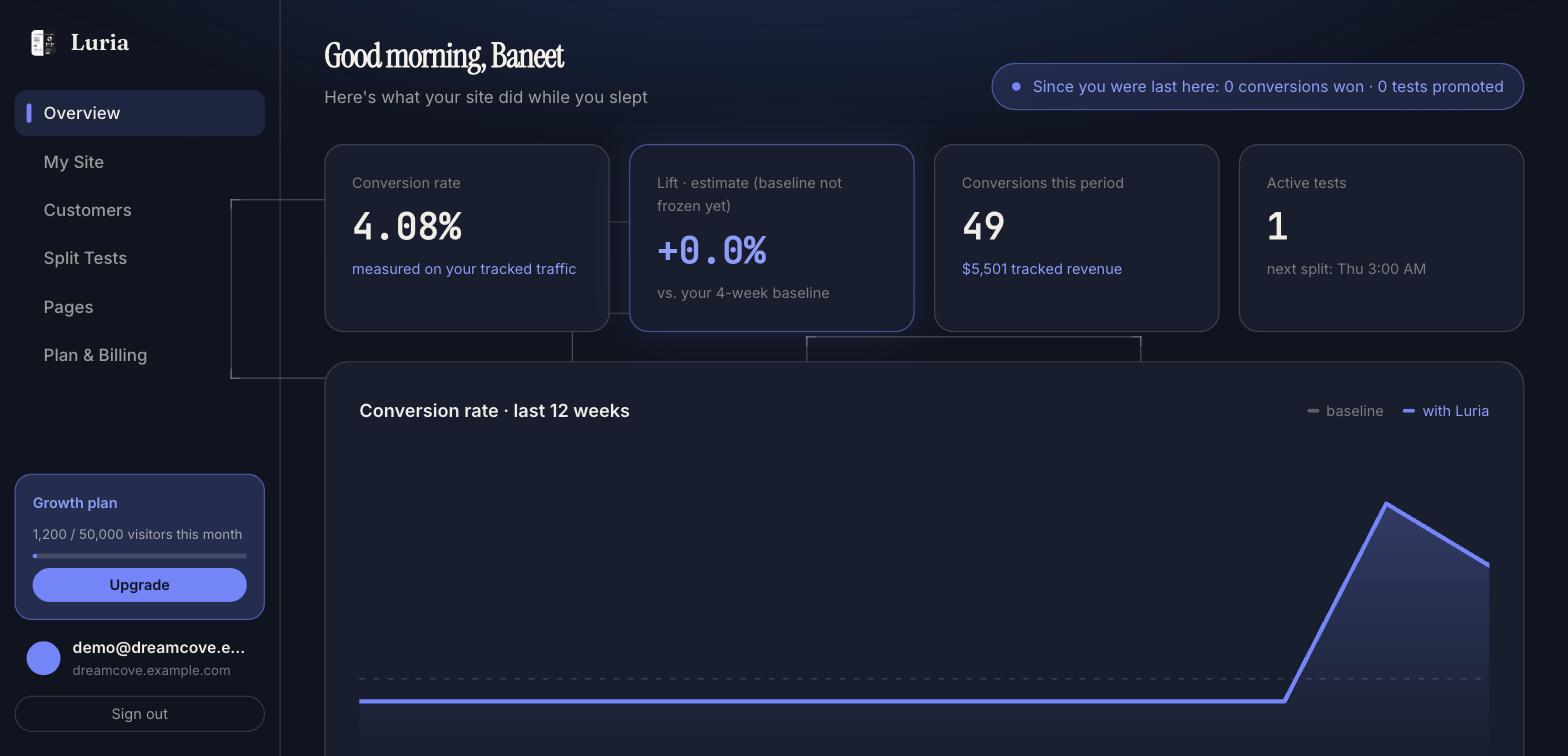
Use your sign-in link to open luriart.com/app. A six-step tour walks you through Overview, My Site, Customers, Split Tests, Pages and Plan & Billing.
Luria builds the tests from the scan and your answers. You do not write variants. By default every change waits for your approval before it goes live ("Approve first" on the Pages tab).
Verify it worked
- In the Luria app inside your Shopify admin, Status shows Tracking on storefront: Live and Data agreement: Accepted.
- Onboarding reached the "Your first test is live" card.
- In the dashboard, Split Tests shows at least one card with sessions counting up.
Longer checklist: Verify your install.
Common failures
- No sign-in link. Email hello@luriart.com. The signed-out dashboard card also has "Email me a link".
- Tracking says "Needs activating". The theme app embed is off. Redo step 6.3 and press Save in the theme editor.
- Nothing is syncing. The Data Processing Terms are not approved yet. Open Luria in your Shopify admin and click Agree & start syncing.
- "That doesn't look like a Shopify address". The theme editor button needs your
.myshopify.comaddress, not your custom domain. - Nothing visibly changes on the store. Expected while a change is waiting for approval, and while a test is still gathering sessions. See No variants serving.
Your first 5 attributed conversions are free. After that it is one plan, $199 a month, billed by Luria on luriart.com. Details: Plans and metering.