
How a test is measured
The control arm, sticky assignment, P(beat control), and the gates that promote or kill a variant.
Every number Luria shows you comes from one comparison: your original page against a variant, running at the same time, on the same traffic.
What you'll need
A live install and real visitors. Everything below happens on its own; there is nothing to configure.
How a test runs
Step 1: Part of your traffic is held back on the original
Every test has two arms: control and variant. Control sessions get the original page, untouched, but they still register that they were part of the test. That is the whole point of holding them back: without them you have no honest comparison.
Step 2: A visitor keeps the same arm
Assignment is a sticky hash of the visitor and the test, and the arm is remembered in the browser. The same visitor sees the same version on every visit for as long as the test runs, so one person can never be counted on both sides.
Step 3: A conversion counts for the arm that was live
A conversion is credited to an arm only when the order happened at or after that session first saw that arm. A purchase from before the test started does not get pulled in.
One order counts once. On Shopify the order is deduplicated on its Shopify order id, so the pixel and the order webhook cannot both count it. A fully refunded order is taken back out of your revenue.
Step 4: The result is a probability, not a verdict
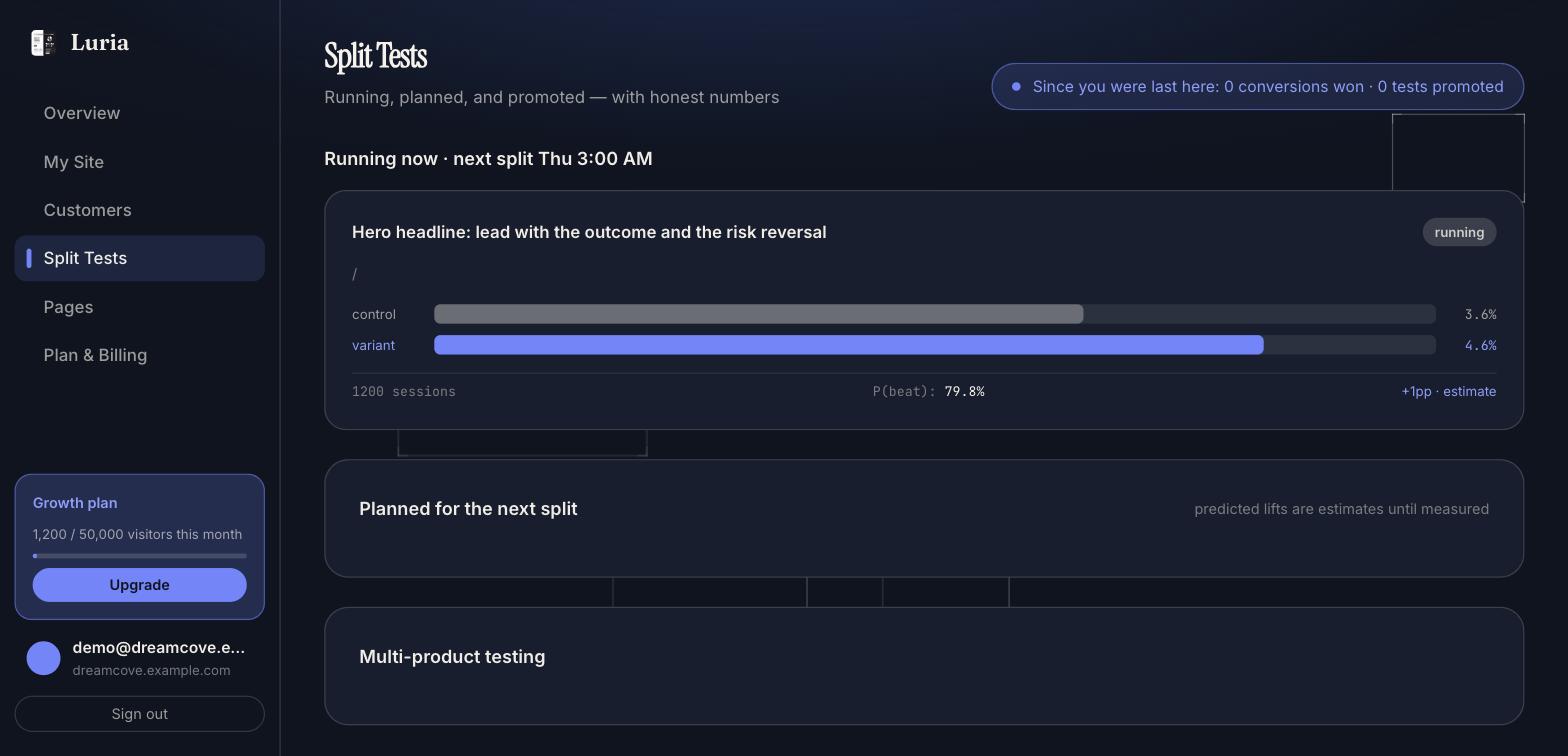
Luria reports P(beat): the probability that the variant is genuinely better than control, given everything measured so far. Split Tests shows it per test next to the two conversion rates, the session count, and a lift estimate in percentage points, labeled "estimate".
Step 5: Traffic moves toward the winner while the test runs
Traffic is reallocated as evidence builds, so a losing variant stops costing you sales early instead of at the end. The control never drops below 10% of traffic, and the split stays even until both arms reach 200 sessions, so early noise cannot move anything.
Step 6: Promote at 95%, kill at 5%
A variant is promoted only when P(beat) is above 95% with at least 200 sessions in each arm, and more than 200 when the gap between the arms is small enough that 200 would not prove anything. Below 5% it is killed. Between those, the test keeps running.
Promotion pins the winner at full traffic and the decision is final; the change shows as promoted on My Site, where it still has a roll-back button.
What you'll see
- Split Tests: a card per test with control and variant rates, "{n} sessions", "P(beat): {x}%", and the lift estimate. The badge reads running, paused, or ready to promote.
- Overview: your conversion rate on tracked traffic, and Lift against your 4-week baseline. Until four weeks of data exist the card says "Lift · estimate (baseline not frozen yet)" instead of claiming a measured number.
- My Site: every change with its status, from pending approval through live, promoted, rolled back, paused or killed.
Why not just compare before and after
A before-and-after comparison also picks up everything else that changed in between: the season, a price change, a different traffic mix, an ad that started or stopped. You cannot separate those from the edit you made.
The held-out control removes that problem. Both arms live through the same week, the same ads and the same seasonality, so the difference between them is the change itself.
Common failures
- P(beat) is high but nothing was promoted. The session gate is not met yet. Both arms need at least 200 sessions, and more when the difference is small.
- A test sits at 50/50 forever. Neither arm has reached 200 sessions, so the split has not started moving.
- No sessions at all. Nothing is being served. See No variants serving.
- Your totals differ from Shopify. Luria counts attributed orders net of full refunds, tied to sessions that saw a test. Shopify counts every order. See Numbers don't match Shopify.